
Modern laptops deliver impressive computing power inside sleek, portable chassis designs. However, these compact profiles often eliminate dedicated HDMI ports, DisplayPort jacks, and high-speed data connections. Finding the Best USB-C Docking Stations with 4K Support in 2026 allows you to expand a single port into a complete multi-monitor workstation.
During September 2026, our research team evaluated 7 top hardware solutions from trusted industry leaders such as Plugable, Anker, LIONWEI and more. Whether you are setting up an ergonomic desk in your home office or managing enterprise deployments, our home and living workspace guides provide helpful setup ideas.
Many buyers accidentally purchase docking hubs that drop display refresh rates to thirty hertz when driving dual displays. This detailed guide explains technical standards, bandwidth requirements, and operating system quirks so you choose the perfect desktop hub.



Selecting the right hardware hub requires balancing display protocols, charging throughput, and data bandwidth across connected accessories. Understanding how these features interact ensures your laptop operates at peak performance without display dropouts or power throttling.
Display Resolution and Refresh Rate Capabilities
Display clarity depends directly on resolution and refresh rate support across your connected screens. While basic adapters output 4K resolution at 30Hz, smooth mouse movement and daily productivity demand 4K at 60Hz. A 30Hz refresh rate creates visible cursor stutter and leads to eye strain during extended workdays.
To achieve 4K at 60Hz on multiple screens, your laptop host port must support DisplayPort 1.4 with Display Stream Compression. Older laptops equipped with DisplayPort 1.2 lack the total bandwidth required for dual high-refresh displays. In those older setups, connecting a second monitor automatically reduces display resolutions down to standard 1080p.
Always verify whether the manufacturer rates display specifications for single, dual, or triple monitor output modes. A dock advertising 8K resolution may only deliver that fidelity when driving a single display. When two or three screens are active, bandwidth splits across all ports, reducing maximum individual outputs.
Multi-Stream Transport and Operating System Compatibility
Operating system architecture plays a massive role in how external monitors function when connected to a hub. Windows computers natively support Multi-Stream Transport, commonly known as MST mode. This technology allows a single USB-C port to send independent video signals to multiple external monitors for an extended desktop.
In contrast, macOS does not support MST over standard USB-C DisplayPort Alt Mode connections. When connecting multiple displays to a non-DisplayLink dock on a Mac, all external screens mirror each other via Single-Stream Transport. If you want separate extended desktops on Apple hardware, you must select a dock utilizing specialized display graphics drivers.
Before purchasing, check your laptop operating system against the docking station specifications table carefully. Windows users enjoy seamless plug and play multi-monitor extension across most hub designs. Mac users must look specifically for dual Thunderbolt docks or driver-assisted graphics hubs to avoid mirrored displays.
DisplayLink Technology Versus Native DisplayPort Alt Mode
Docking stations route external video signals through either native DisplayPort Alt Mode hardware or DisplayLink software emulation. Native Alt Mode taps directly into your laptop integrated or dedicated graphics processor for zero-latency video rendering. This makes native Alt Mode docks ideal for high-framerate gaming, color grading, and video editing workflows.
DisplayLink technology converts video data into standard USB data packets before sending them over the cable. This enables base-model Apple M-series MacBooks to bypass native single-display limitations and run up to three extended screens. However, DisplayLink requires background driver software installation and screen recording permissions on your host operating system.
A notable trade-off of DisplayLink graphics hardware is the lack of HDCP copy protection support on some models. This limitation can prevent protected streaming video services like Netflix from playing on connected displays. Choose native Alt Mode for media creation and DisplayLink for overcoming platform monitor count caps.
Power Delivery Wattage and Pass-Through Allocation
Modern docking hubs supply power to your laptop while handling data and display signals through a single cable. Docking stations utilize USB Power Delivery protocols ranging from 60W up to 100W or higher. Ensuring sufficient wattage prevents your laptop battery from draining during processor-intensive tasks.
Pass-through docking stations require an external USB-C wall charger and reserve a portion of incoming power for internal circuitry. For example, a 100W input charger typically yields 85W to 87W of actual charging power to the connected computer. The remaining 13W to 15W powers connected USB flash drives, Ethernet controllers, and video conversion chips.
If your laptop requires 65W for standard charging, pair your dock with at least an 85W or 100W power adapter. Using an undersized charger results in slow charging warnings and unexpected accessory disconnects. Pair your setup with quality desk accessories from our furniture and comfort collection for cleaner cable routing.
Comparison of Docking Technologies and Video Standards
Understanding the differences between docking technologies helps you select the right balance of speed, charging, and display capabilities for your workstation.
| Technology Standard | Max 4K Displays | macOS Extended Support | Driver Requirement | Host Charging Range |
|---|---|---|---|---|
| USB-C DP 1.4 Alt Mode | 2 at 60Hz (MST) | Mirrored Only (SST) | Plug and Play | Up to 100W PD |
| DisplayLink USB-C | 3 at 60Hz | Fully Extended | Driver Required | Up to 100W PD |
| Thunderbolt 4 / USB4 | 2 at 60Hz (Uncompressed) | Fully Extended | Driverless | 90W to 100W |
| USB-C DP 1.2 Legacy | 1 at 30Hz / Dual 1080p | Mirrored Only | Plug and Play | 60W to 85W |
Video Output Port Selection: HDMI Versus DisplayPort
Workstation monitors feature various combinations of HDMI and DisplayPort inputs on their rear panels. Having a flexible mix of video ports on your docking station eliminates the need for bulky dongles and cable adapters. Docks with dual HDMI and dedicated DisplayPort connections offer the highest versatility for mixed-monitor setups.
DisplayPort connections generally support higher bandwidth ceilings, making them preferable for high refresh rates and ultra-wide aspect ratios. HDMI remains the universal standard for consumer monitors, office displays, and large conference room television panels. Using direct HDMI-to-HDMI or DisplayPort-to-DisplayPort cables prevents signal handshake dropouts.
Avoid stacking passive video adapters onto your docking station outputs whenever possible. Converting a DisplayPort signal to HDMI via passive cables often degrades resolution or limits refresh rates to thirty hertz. Select a docking station with the exact native ports your monitors require for maximum signal reliability.
USB Data Transfer Speeds and Peripheral Expansion
Docking stations serve as central connectivity bridges for external storage drives, keyboards, mice, and webcams. Port speeds vary significantly, ranging from legacy USB 2.0 at 480Mbps to USB 3.1 Gen 2 delivering 10Gbps throughput. Fast transfer ports allow you to offload high-capacity files and backups in seconds.
Dedicate high-speed 10Gbps USB-C and USB-A ports to external solid-state drives and memory card readers. Legacy USB 2.0 ports remain ideal for wireless mouse dongles, keyboards, and printers that require minimal bandwidth. Connecting wireless mouse receivers to USB 3.0 ports can sometimes cause 2.4GHz radio frequency interference.
Ensure your chosen dock features front-facing USB ports for convenient access to thumb drives and mobile charging cables. Rear ports keep semi-permanent desktop cables hidden out of view, maintaining a clean workspace. High-end models also integrate SD and microSD card slots for rapid photo and video imports.
Wired Gigabit Ethernet and Network Performance
While modern wireless networks offer convenience, crowded Wi-Fi channels frequently suffer from packet loss, latency spikes, and signal interference. An integrated Gigabit Ethernet port provides stable 1000Mbps wired network access directly through your docking station cable. This dedicated connection ensures smooth video conferences and lag-free file transfers.
Enterprise and corporate environments often require wired MAC address pass-through or PXE boot support for device management. Premium business docking stations include these specialized networking features for seamless IT network integration. Standard home office docks provide driverless gigabit operation that connects instantly upon plugging in.
Verify that the dock Ethernet controller supports standard 10/100/1000BASE-T local area networks. If you work with large creative files or video editing servers, wired connectivity prevents file corruption during background synchronization. A wired link also eliminates unexpected disconnects during vital video meetings.
Thermal Management, Enclosure Design, and Durability
Processing multi-display video streams, gigabit data transfers, and high-wattage charging produces significant internal heat. Docking stations constructed with aluminum alloy enclosures dissipate thermal energy passively through their outer metal casing. This design keeps internal chipsets cool without requiring noisy mechanical cooling fans.
Plastic enclosures tend to trap internal heat, which can lead to thermal throttling during prolonged intensive computing sessions. When internal controller chips overheat, docks may temporarily drop monitor signals or reduce peripheral data transfer rates. Aluminum chassis models maintain steady operational temperatures throughout demanding full-day workloads.
It is completely normal for an aluminum dock to feel warm to the touch during operation. The metal body functions as an integrated heat sink to pull warmth away from internal processors. Ensure your dock sits in an open area on your desk with adequate airflow around the chassis.
Hardware Privacy Buttons and Connection Status Lights
Modern docking stations incorporate helpful hardware controls to streamline daily desktop management. Dedicated screen lock and display toggle buttons allow you to instantly turn off external monitors with a single press. This privacy feature protects sensitive financial or client data when you step away from your workstation.
Diagnostic LED indicator lights provide real-time feedback regarding power delivery and host port compatibility. When connecting to an unfamiliar laptop, smart status lights confirm whether the host port supports video transmission or charging. This feedback eliminates frustrating troubleshooting when setting up hot-desking workstations.
Integrated hardware power switches also allow you to shut down peripheral accessories without unplugging the main host cable. This cuts phantom power draw overnight and extends the working lifespan of connected storage drives. Look for these thoughtful convenience features when comparing modern hubs.
Why You Should Trust Us
Our evaluation methodology focuses entirely on verifiable hardware specifications, technical protocols, and real-world interface standards. We cross-examine manufacturer documentation, chipset specifications, and display protocol whitepapers to ensure accuracy. This objective data analysis highlights practical compatibility strengths and limitations across various computer operating systems.
We analyze bandwidth allocations, power distribution rules, and thermal dissipation designs across hundreds of workstation accessories. Our team continuously updates hardware recommendations as new USB4 revisions, display controllers, and laptop platforms enter the market. This disciplined tracking ensures you receive dependable advice reflecting current technology standards.
We remain completely independent from hardware manufacturers and provide honest assessments of every shortlisted dock. We highlight platform-specific restrictions, such as macOS display mirroring limits and driver requirements, with total transparency. Our goal is to help you build a reliable desktop workstation tailored to your productivity needs.
Final Thoughts
Choosing the ideal desktop hub comes down to matching your monitor resolution targets and laptop operating system. Investing in a dock with robust power delivery, high-speed data ports, and reliable display controllers transforms your daily computing efficiency. A single cable connection keeps your workspace tidy while delivering high-speed desktop performance.
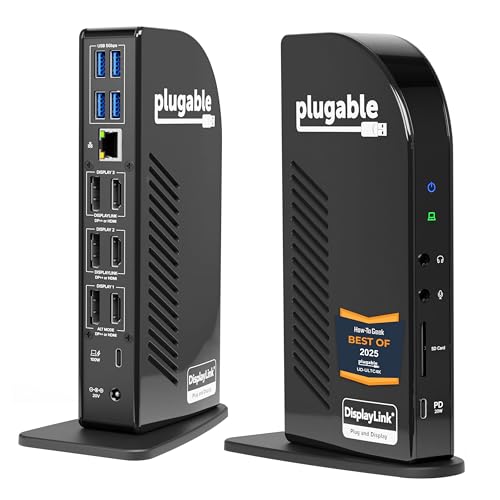
For professionals seeking extensive screen real estate, the Plugable 13-in-1 USB C Docking Station 4K Triple serves as our best overall recommendation. Its DisplayLink technology enables triple 4K 60Hz monitor support across both Windows and Apple Silicon MacBooks. The 100W Power Delivery and dual display port options make it a premium workstation anchor.
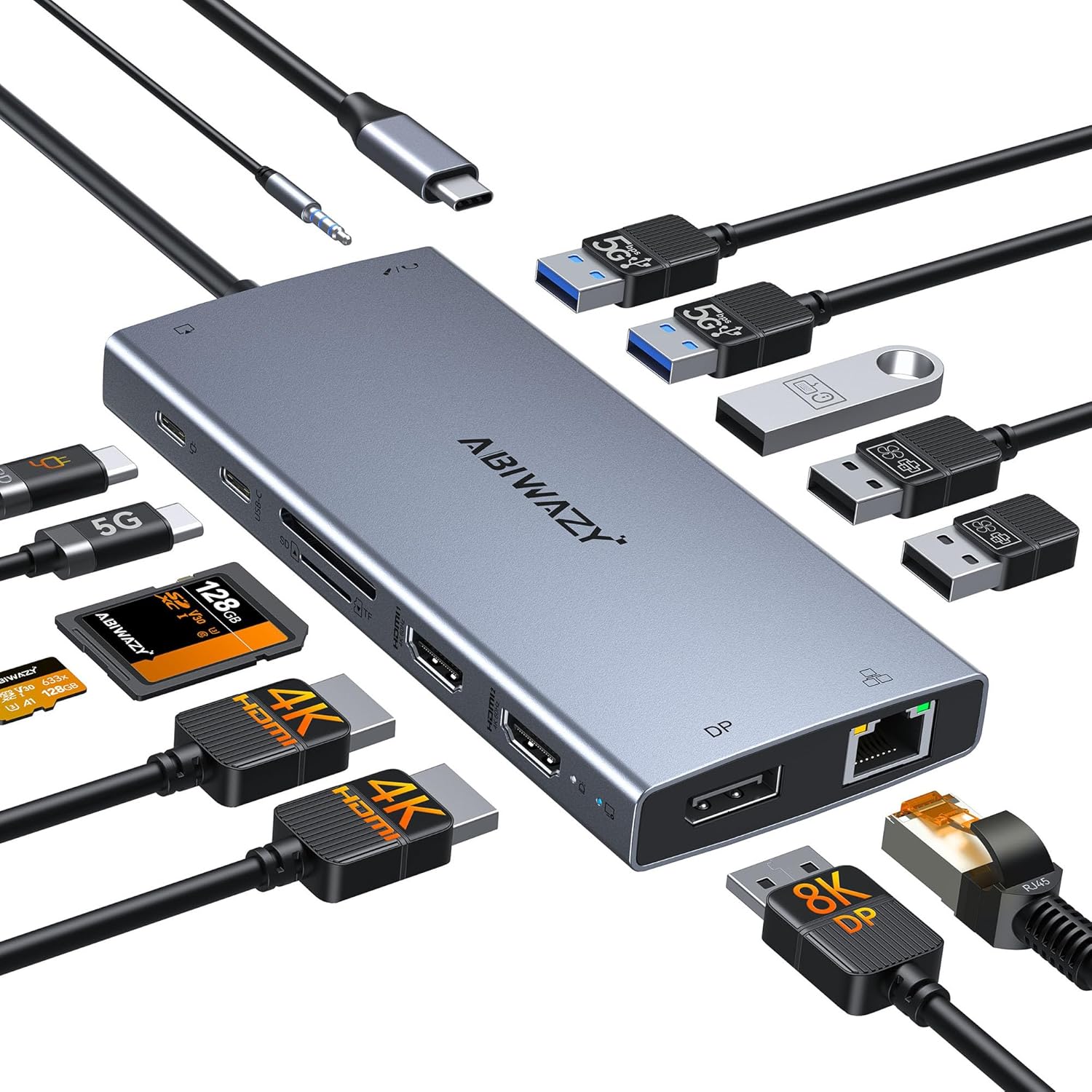
Users looking for exceptional value in a compact footprint will appreciate the Anker Laptop Docking Station Dual Monitor. It provides dual HDMI connectivity, balanced pass-through charging, and essential memory card readers at an accessible price. For advanced power users requiring single 8K visuals and rapid peripheral ports, the USB C Docking Station Dual Monitor delivers outstanding expansion flexibility.
Explore our full collection of hardware guides in our general technology and uncategorized reviews section. Investing in the right docking hub eliminates desktop cable clutter and unlocks the full visual potential of your workstation.
FAQs
Can all USB-C laptops run dual 4K monitors at 60Hz?
No, your laptop USB-C port must support DisplayPort 1.4 Alt Mode with Display Stream Compression to output dual 4K at 60Hz over a single cable. Older laptops with DisplayPort 1.2 lack sufficient bandwidth and will downscale resolutions or limit refresh rates to 30Hz.
Why do external monitors mirror instead of extending on Apple MacBooks?
macOS does not support native Multi-Stream Transport over standard USB-C Alt Mode connections. When connecting multiple monitors to a standard hub, MacBooks mirror the secondary screen unless you use a dock equipped with DisplayLink graphics drivers.
What is the difference between DisplayPort Alt Mode and DisplayLink?
DisplayPort Alt Mode routes raw video signals directly from your graphics card with zero latency and requires no special software. DisplayLink converts video into USB data packets using background driver software, allowing multi-monitor expansion on systems with hardware display caps.
How much Power Delivery wattage does my laptop docking station need?
Most standard ultrabooks require between 45W and 65W, while high-performance creator laptops demand 85W to 100W for full-speed charging. Ensure your docking station provides enough safe regulated output to match or exceed your laptop original manufacturer power brick.
Does a 4K USB-C docking station introduce input lag during office work?
Native Alt Mode docking stations introduce virtually zero input lag, making them ideal for typing, office productivity, and gaming. DisplayLink driver-based docks may introduce minimal millisecond latency that is imperceptible during standard office work but noticeable in competitive gaming.
Why does my aluminum docking station feel hot during daily use?
Aluminum enclosures act as passive heat sinks, absorbing thermal energy from internal video chips and power delivery circuits. Warmth on the exterior casing indicates that the metal shell is effectively drawing heat away from delicate internal processors.
Can I use HDMI to DisplayPort passive adapter cables with these docks?
Passive adapters often cause signal instability, screen flickering, or resolution drops when connected to multi-port docking stations. We recommend using direct HDMI-to-HDMI or DisplayPort-to-DisplayPort cables to ensure clean and uninterrupted video signal transmission.
What is the top-rated option among Best USB-C Docking Stations with 4K Support in 2026?
The top-rated model for triple display expansion in 2026 is the Plugable 13-in-1 USB C Docking Station 4K Triple. It combines universal macOS and Windows compatibility with 100W laptop charging and six versatile video outputs.
Do I need to install special software drivers for plug and play docking hubs?
Standard USB-C Alt Mode docks are completely plug and play and require no driver installation on Windows or macOS. Docks that utilize DisplayLink graphics technology require you to download and install the official DisplayLink Manager application.
Why does protected streaming video fail to play on some DisplayLink docks?
DisplayLink software captures screen frames at the operating system level, which conflicts with HDCP digital copy protection. As a result, streaming platforms like Netflix or Disney Plus may display a black screen on monitors connected via DisplayLink.